Fig: Advances in Speech and Music Technology book cover.
I have recently published an chapter in an academic book published by Springer. The topic of the book is of interest to me but can be perceived as rather dry: Advances in Speech and Music Technology.
The chapter I co-authored presented two case studies on detecting duplicates in music archives. The fist case study deals with segmentation reuse in an archive of early electronic music. The second with meta-data reuse in an archive of a public broadcaster containing digitized commercial shellac disc recordings with many duplicates.
Duplicate detection being the main topic, I decided to title the article Duplicate Detection for for Digital Audio Archive Management. It is easy to miss, and not much is lost if you do, but there is a duplicate‘for’ in the title. If you did detect the duplicate you have detected the duplicate in the duplicate detection article. Since I have fathered two kids I see it as an hard earned right to make dad-jokes like that. Even in academic writing.
It was surprisingly difficult to get the title published as-is. At every step of the academic publishing process (review, editorial, typesetting, lay-outing) I was asked about it and had to send an email like the one below. Every email and every explanation made my second-guess my sense of humor but I do stand by it.
From: Joren \
To: Editors ASMT \
\
Dear Editors, \
\
I have updated my submission on easychair in...\
\
I would like to keep the title however as is an attempt at word-play. These things tend to have less impact when explained but the article is about duplicate detection and is titled 'Duplicate detection for for digital audio archive management'. The reviewer, attentively, detected the duplicate 'for' but unfortunately failed to see my attempt at humor. To me, it is a rather harmless witticism.
Regards
Joren
</pre>
Anyway, I do think that humor can serve as a gateway to direct attention to rather dry, academic material. Also the message and the form of the message should not be confused. John Oliver, for example, made his whole career on delivering serious sometimes dry messages with heaps of humor: which does not make the topics less serious. I think there are a couple of things to be learned there. Anyway, now that I have your attention, please do read the author version of Duplicate Detection for for Digital Audio Archive Management: Two Case Studies.
The Amsterdam Music Hack Day is a full weekend of hacking in which participants will conceptualize, create and present their projects. Music + software + mobile + hardware + art + the web. Anything goes as long as it’s music related
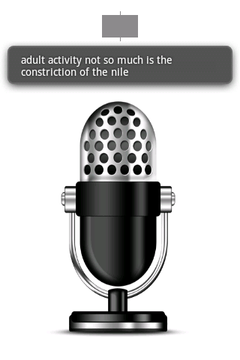
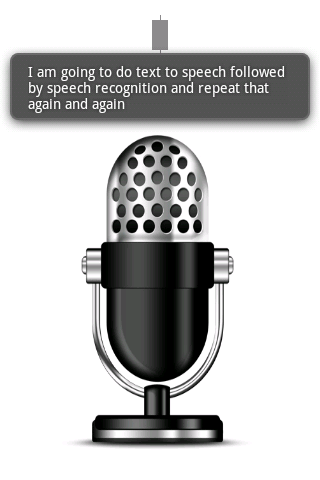
The hackathon was organized at the NiMK(Nederlands instituut voor Media Kunst) the 25th and 24th of May. My hack tries to let a phone start a conversation on its own. It does this by speaking a text and listening to the spoken text with speech recognition. The speech recognition introduces all kinds of interesting permutations of the original text. The recognized text is spoken again and so a dreamlike, unique nonsensical discussion starts. It lets you hear what goes on in the mind of the phone.
The idea is based on Alvin Lucier’s I am Sitting in a Room form 1969 which is embedded below. He used analogue tapes to generate a similar recursive loop. It is a better implementation of something I did a couple of years ago.
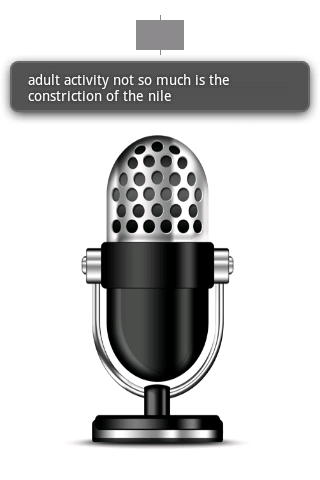
The implementation is done with Android and its API’s. Both speech recognition and text to speech are available on android. Those API’s are used and a user interface shows the recognized text. An example of a session can be found below:
To install the application you can download “Tryalogue.apk”:[Tryalogue.apk] of use the QR-code below. You need Android 2.3 with Voice Recognition and TTS installed. Also needed is an internet connection. “The source”:[Tryalogue.zip] is also up for grabs.
Recently I bought a big shiny red USB-button. It is big, red and shiny. Initially I planned to use it to deploy new versions of websites to a server but I found a much better use: ordering pizza. Graphically the use case translates to something akin to:
If you would like to enhance your life quality leveraging the power of a USB pizza-button: you can! This is what you need:
A PC running Linux. This tutorial is specifically geared towards Debian-based distos. YMMV.
A big, shiny red USB button. Just google “USB panic button” if you want one.
A location where you can order pizzas via a website. I live in Ghent, Belgium and use just-eat.be. Other websites can be supported by modifying a Ruby script.
Technically we need a driver to check when the button was pushed, a way to communicate the fact that the button was pushed and lastly we need to be able to react to the request.
The driver: on the internets I found a driver for the button. Another modification was done to make the driver process a daemon.
The communication: The original Python script executed another script on the local pc. A more flexible approach is possible using sockets. With sockets it is possible to notify any computer on a network.
```ruby\
if PanicButton().pressed():\
# create a TCP socket\
s = socket.socket(socket.AF_INET, socket.SOCK_STREAM)\
# connect to server on the port\
s.connect((SERVER, SERVER_TCP_PORT))\
# send the order (margherita at restaurant mario)\
s.send(“mario: [margherita_big]\n”)\
```
The reaction: a ruby TCP server waits for message from the driver. When it does it automates a HTTP session on a website. It executes a series of HTTP-GET’s and POST’s. It uses the mechanize library.
Some libraries are needed. For python you need the usb library, the python deamons lib needs to be installed seperatly. Setuptools are needed to install the deamons package.
Ruby needs rubygems to install the needed mechanize and daemons library. Mechanize needs the libxslt-dev package. You also need the build-essential package to build mechanize.
Om Python wat te leren kennen heb ik een “Text To Speech Recognition” programma geschreven. Het roept SAPI 5.1 aan om een tekst voor te laten lezen door Microsoft Sam. Het voorgelezen stuk tekst wordt daarna meteen via microfoon opgenomen en Sam probeert het zelf, via Speech Recognition, te verstaan. Het resultaat van de speech recognition wordt dan gelezen door Sam enzovoort… Dit is een voorbeeld van Sam in dialoog met zichzelf:
I am sitting in a room different from the one you are in now. I am recording the sound of my speaking voice and I am going to play it back into the room again.
I’m sitting in a room different from the one U.N. NA I’m recording the sound of my speak English and I’m going to play it back into the room against
I’m sitting in a room different from the one you could in a LAN recording the sound of my speak English and I’m going to clamp back into the room against
I’m sitting in a room different from the one you put in a LAN recording the sound and I speak English and I’m going to clamp back into the room against
I’m sitting in a room different from the one you put in a LAN recording the sound and I speak a Mac into ghent
I’m sitting in a room different from the one you put in a LAN recording the sound and I speak a match into ghent


 Poging tot humor, Research papers, and UGent
 This post is about a hack I did for the 2012
 screenshot.png, Tryalogue.apk, Tryalogue.zip, and apk.png